Generating Your First Draft
Creating your first email draft
Once you've installed the add-on, generating a draft takes seconds. There's no activation step or forwarding — your default profile is ready immediately.
Composing a new email
Step 1: Open the compose window
Click the Compose button in Gmail to start a new email.
Step 2: Open the add-on
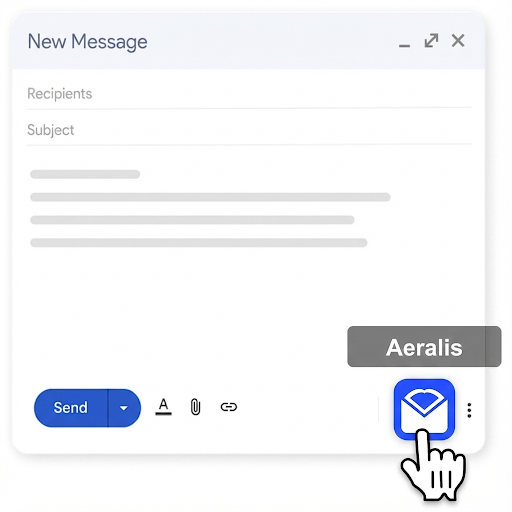
In the compose window, look for the Aeralis icon at the bottom right corner, next to the send button. Click on it to open the add-on panel.
Step 3: Select your profile
Pick the profile you want to use from the dropdown. Each profile carries its own writing style and grounding tools, so the output will match however you write in that context.
If you only have one profile, it's selected automatically.
Step 4: Describe your email
In the text area, describe what you want to write. Be specific about:
- Purpose - What's the goal of this email?
- Key points - What information should be included?
- Anything unusual - Anything different from how you'd normally write?
For example:
"Schedule a meeting with the marketing team for next week to discuss Q1 results. Mention I'll have the updated deck ready by Wednesday."
Step 5: Generate the draft
Click Generate Draft and wait a few seconds. The AI will create your email using your profile's writing style and insert it into the compose window.
Step 6: Review and edit
Always review the generated draft before sending. You can:
- Edit any part of the text
- Regenerate if needed
- Add attachments or CC recipients
Tips for better results
- Be specific - "Follow up on the proposal I sent Monday" works better than "write a follow-up"
- Include context - Mention relevant background the AI wouldn't know from your profile alone
- Use the right profile - Make sure you've selected the profile that matches the situation
- Write a good style hint - One or two sentences in the profile’s "How you write" field locks in tone faster than learning alone
Next steps
- Learn how to generate your first reply
- Learn about Profiles to customize your experience
- Discover tips for better results
Quick Links:
- All Help Topics— Browse help center
- FAQ— Common questions
- Pricing Plans— Compare Free, Pro, and Business
Related Articles
Installing the Gmail Add-on
Install Aeralis from the Google Workspace Marketplace in under 2 minutes. Follow our step-by-step guide to add the AI email assistant to your Gmail account.
Generating Your First Reply
Generate AI-powered email replies in Gmail. Open any email, select your profile, and get a contextual response in your writing style.
Setting Up Workspace Studio
Connect Aeralis to Google Workspace Studio to automate email workflows. Trigger AI-generated emails from Calendar events, Form submissions, and more.